What Are Claude Connectors? Complete Guide for Beginners

By
Jan Meinecke
・
・
8
Min
Read
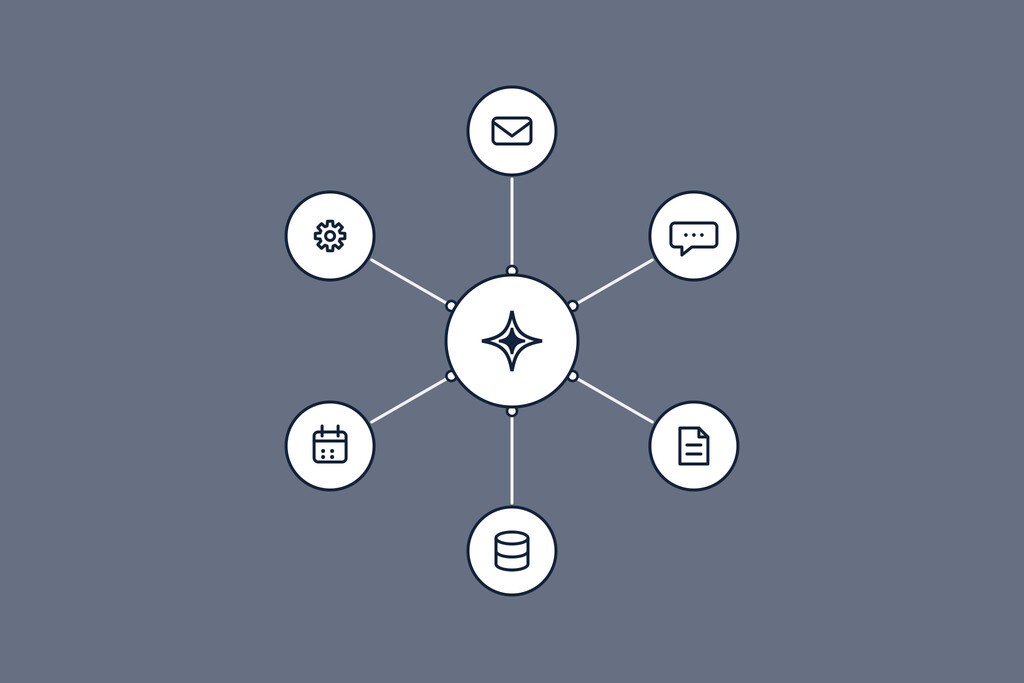
What Are Claude Connectors? Complete Guide for Beginners
By
jan Meinecke
8
Min
Read
Claude connectors are built-in integrations that let Claude work directly inside the tools you already use, Gmail, Slack, Notion, your CRM, and hundreds more, so it can read and act on your real data instead of just talking about it. They're the bridge between Claude and the apps where your work actually lives. This guide covers what Claude connectors are, how to set one up, how the permission model keeps you safe, and what to do when the tool you need doesn't have a connector yet.
Most of your work doesn't sit in files on your desktop. It sits in the cloud apps you're in all day. Connectors are how Claude reaches them, and they're the fastest way to go from a useful assistant to one that gets real jobs done.
Watch: for the protocol that powers custom connectors, our short explainer MCP Explained in 2 Minutes is a good primer.
What are Claude connectors?
A connector is a ready-made integration between Claude and an external tool. Once connected, Claude can use that tool's features on your behalf: search your inbox, post to a Slack channel, read a Notion database, update a CRM record.
There are three ways Claude can interact with your tools, and connectors are the main one. The other two are writing code to hit an API directly (more technical) and browser automation, where Claude clicks through a web page when nothing else is available. Connectors are where you should start, because they're the simplest and the most reliable.
Each connector exposes a set of tools, which are the specific actions Claude can take in that app. A Gmail connector, for example, exposes clearly named actions like search threads, list labels, and create a draft. The point is that Claude isn't loose inside your account; it can only do the specific things the connector allows.
The four types of Claude connectors
Not every connector works the same way. Knowing the four types saves you time when you're deciding how to reach a given tool.
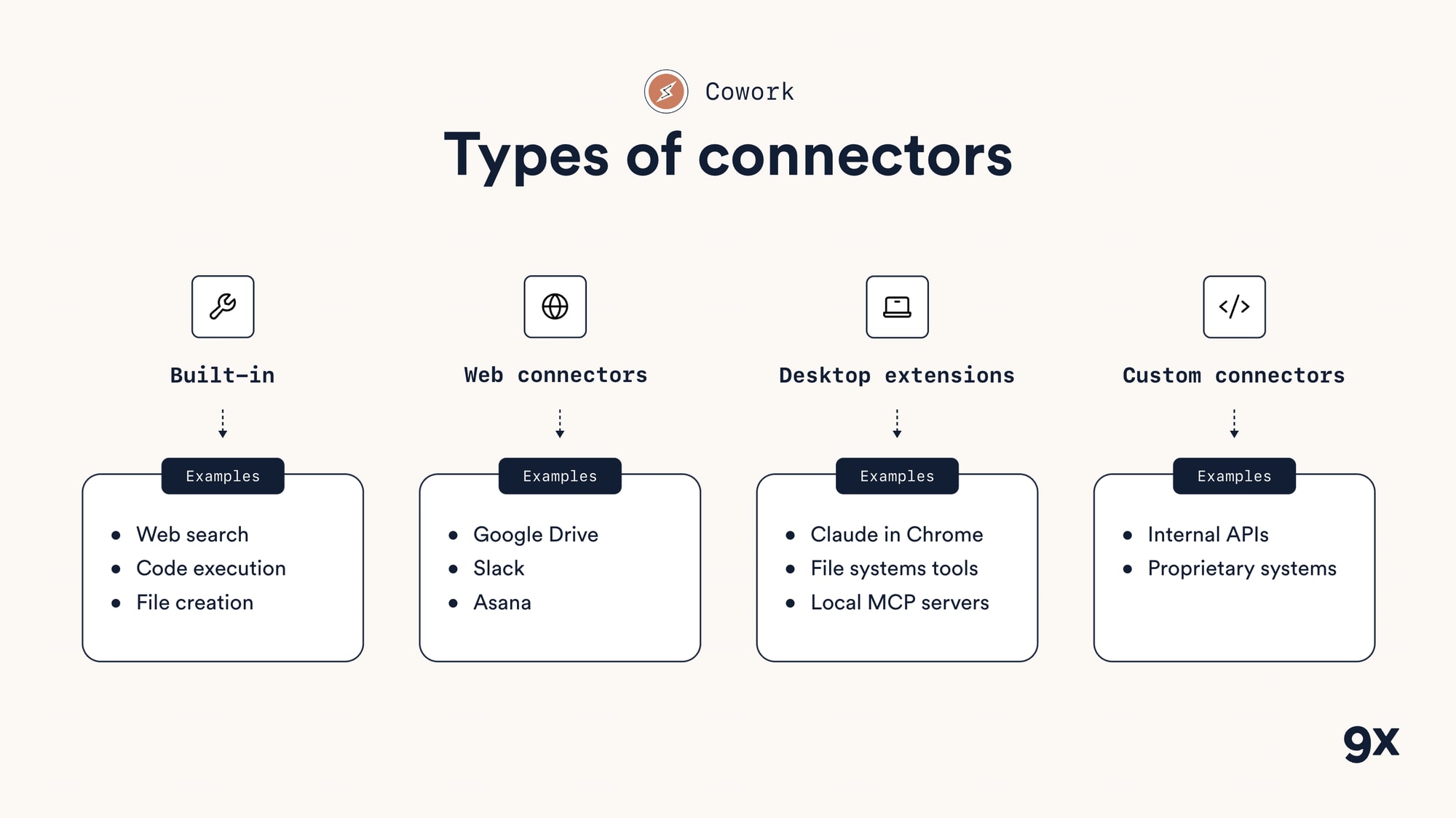
The four kinds of connector, from built-in capabilities to custom internal systems.
Built-in capabilities are always on with a paid plan and can't be toggled off: Web search, code execution, and file creation. Claude reaches for them automatically when a task needs them.
Web connectors run on external servers and connect Claude to cloud services, Google Drive, Slack, Asana, and the hundreds of others in the Connectors Directory. Some are interactive, which means they can render a live dashboard or task board straight into your conversation. These are what most people mean by "connector".
Desktop extensions run locally on your machine through Claude Desktop, so they can reach things that shouldn't leave your computer: Your local files, and Claude in Chrome for reading and acting on web pages. Local MCP servers, custom tools you run yourself, live here too.
Custom connectors cover any tool with no ready-made option, an internal API or a proprietary system, which you add yourself by pointing Claude at a remote MCP server (more on those below).
For cloud apps, start with a web connector, because it's the simplest and most reliable route. Save the browser for a tool that has no connector and no API, since clicking through a web page is the least dependable way in.
How to set up a Claude connector
Setting one up takes a minute and no technical skill.
In Claude Cowork, go to Customize, then Connectors, then browse the hundreds of built-in options. Pick the tool you want and connect it. Connecting uses OAuth, the same secure sign-in flow you've used to log into apps with Google or Microsoft. You log in to your account and grant Claude access only to what your account can already see.

That last point about access is worth sitting with, because it's the thing people worry about. Connecting your Gmail gives Claude access to your inbox, not your colleagues'. It can only ever see and do what you can see and do.
One practical note: Connectors update often and don't always refresh on their own. If a tool has gained new actions, click the three dots next to the connector and choose Refresh tools list to pull them in.
How Claude connector permissions work
Permissions are the part that keeps connectors safe to use, so it's worth understanding them properly.
Each connector's tools fall into three groups. Read tools retrieve information without changing anything, such as searching a thread or listing labels. Write tools change things, such as creating a draft, updating a task, or sending a message. Interactive tools render a live interface, like a dashboard or a task board, inside your conversation. Not every connector supports all three, so check the Directory for what each one exposes.
For each tool, or for a whole category at once, you set one of three permission levels.
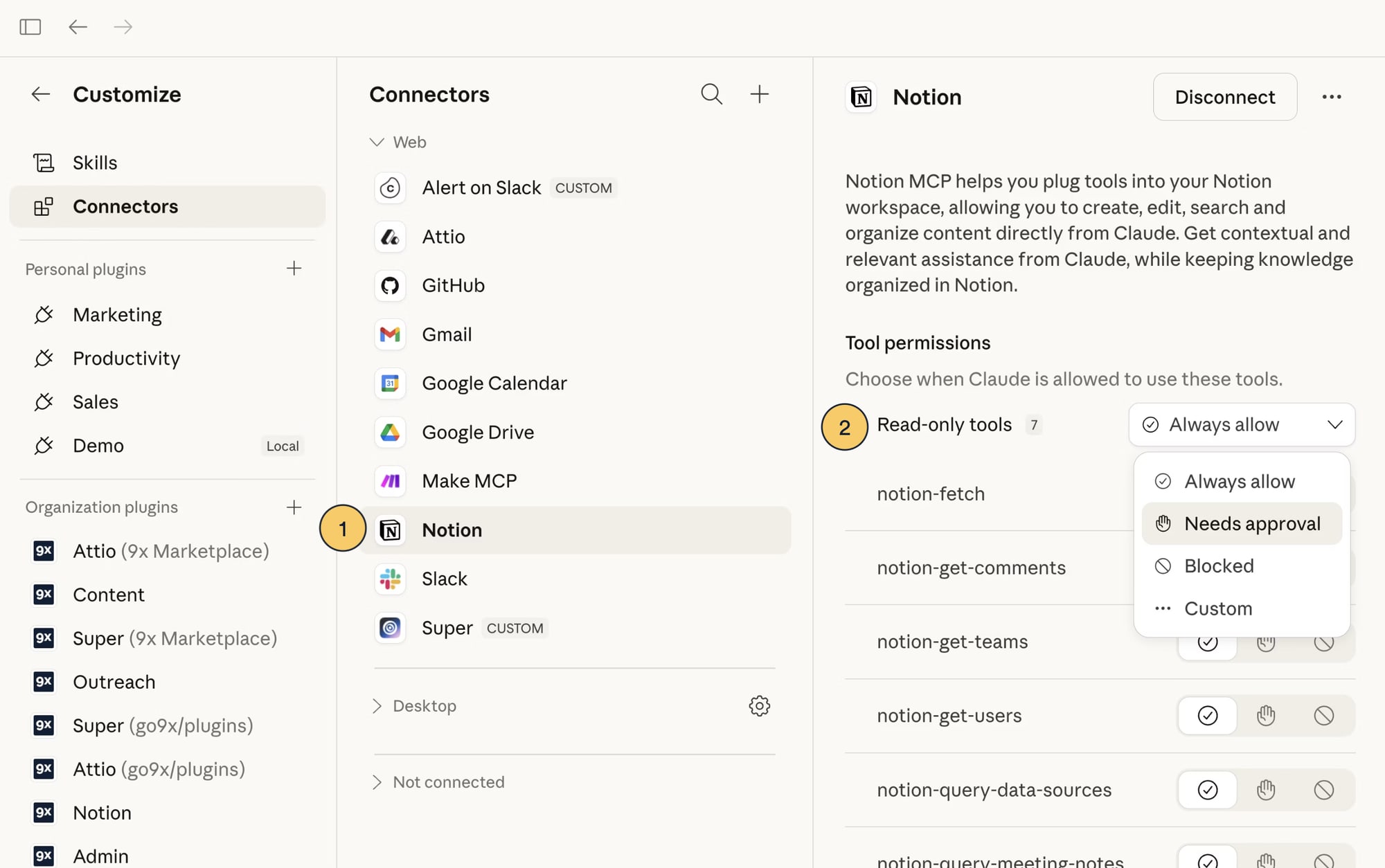
Setting the permission level per tool, or for a whole group, on a Notion connector.
In the screenshot above, (1) is where you choose the connector to manage, under Customize → Connectors. (2) is where you set the level, here for the whole group of Read-only tools at once, though you can open any single tool and set it on its own.
Always allow lets Claude use the tool without asking, best for low-risk reads. Needs approval makes Claude pause and show you exactly what it's about to do before it acts, best for writes. Blocked means Claude can never use that action, best for destructive things you never want automated.
The default for most connectors is Always allow for everything. That's convenient but risky: Leave it there and Claude can run any action, including destructive ones, without asking. The better habit is to go through the actions once and set read-only tools to Always allow, keep anything that writes, sends, or deletes on Needs approval, and Block the ones you never want touched. It costs you a single pass through the settings and it means nothing irreversible happens without your say-so.
How connectors use your context window
Here's the part almost nobody explains, and it's the difference between a snappy Claude and a sluggish one.
Every connector you enable loads all of its tool definitions into the context window, the finite working memory Claude has for a session. A connector with fifteen tools takes up that space before you send your first message. Turn on five busy connectors and you've spent fifty to seventy-five tool definitions' worth of room that could have held your files, your conversation, and Claude's reasoning.
Two habits keep this under control. First, disable connectors you're not using in the current session; your settings carry over, so switching one off now doesn't mean setting it up again later. Second, if you routinely run ten or more connectors, switch to On Demand mode in the tool access settings, which loads a connector's tools only when Claude decides it needs them instead of all of them upfront. Synced files pulled in through a connector cost context too, so keep those to what the task actually needs.
What data can Claude access through connectors?
This is the question we're asked most, and the answer should put your mind at ease: through a connector, Claude can only access the data your own account can already see, and only the actions you allow.
When you connect a tool, you sign in with OAuth, the same secure flow you use to log into apps with Google or Microsoft. You're granting Claude permission to act as you, inside that one tool, so it sees exactly what you see and nothing you couldn't already reach. Connecting your Gmail gives Claude your inbox, not your colleagues'. Connecting one Notion workspace doesn't expose another.
Within that, you control what it can do. As covered above, every read-only action and every write or delete action can be set to Always allow, Needs approval, or Blocked. So you can let Claude read freely while requiring your sign-off before it sends an email or changes a record. You can also disconnect a connector at any time, which revokes its access immediately.
In short: Claude accesses only the tools you connect, only as far as your own permissions reach, and only through the actions you've approved.
When there's no Claude connector: Custom connectors and MCP
Not every tool has a built-in connector yet, but you're rarely stuck. Many tools publish what's called a remote MCP server, which is a standard way for an app to expose itself to AI tools like Claude.
To check, search for the tool's name plus "MCP server" and look at its developer docs. If one exists, go to Connectors, choose Add custom connector, give it a name, and paste in the remote MCP server URL from the docs (plus a client ID and secret if the server asks for them). Then connect it through OAuth exactly as you would a built-in connector, and it behaves like any other: Same permission model, same context cost.
One thing to get right: Prefer the vendor's own MCP server over a third-party one. A server built and maintained by the company behind the tool carries the same trust level as a listed connector. A community-built server is useful when nothing official exists, but you're trusting someone else's code with access to your account, so check the project's activity, maintainer, and reviews before you connect. When both exist, pick the vendor's.
The open standard behind all of this is the Model Context Protocol. Think of it as a universal adapter: Instead of every tool needing a custom integration, MCP gives Claude one standard way to plug into any app that supports it. It's why the list of things Claude can connect to keeps growing.
Getting the most out of Claude connectors
A few habits separate people who get clean results from connectors and people who get frustrated.
Be specific with what you point Claude at. Asking it to "find the monthly reporting spreadsheet" wastes effort and risks the wrong file. Paste the exact link or ID of the spreadsheet, Slack channel, or database instead. It's faster and safer.
Watch the tool calls. Click into a connector action to see exactly how Claude structured the request, for example, which emails it pulled and how many. Connectors often return only the first batch of results, so on a big dataset, check Claude is seeing the full picture.
For large datasets, work on local files first. Export to a CSV, have Claude do the analysis on the complete file, then connect the live tool. Connectors frequently pull only the first few hundred or thousand rows, whereas a local export gives Claude everything, and it will tell you which fields a connector would have missed.
Turn off connectors you don't need for a task. Beyond the context saving, if two similar tools are both connected, Claude can mix them up. Switch off the one you're not using to keep things clean.
Connect Claude to your stack
Connectors are what move Claude out of the chat window and into the tools where your work happens. Start with the one app you spend the most time in, connect it, set read-only actions to Always allow and anything destructive to Needs approval, and give Claude a real task inside it. Add custom connectors through MCP as you need them.
If you want your team wiring Claude into your whole stack, CRM, calendar, docs, project tracker, and building automations on top of it, that's exactly what we teach in Claude Cowork for Growth, our hands-on cohort program. A new cohort is starting soon: You'll go from your first connector to workflows that run across every tool you use, with live guidance the whole way.
Common questions about connector data
Can Claude see my whole company's data? No. A connector is scoped to your account's access. If you can't see something in the tool, neither can Claude.
Can it act without me knowing? Only if you let it. Keep write, send, and delete actions on Needs approval and Claude pauses for your sign-off before doing anything.
How do I cut off access? Remove the connector. That revokes Claude's access to that tool straight away.
FREE LIVE SESSIONS
What’s the best way to learn AI?
With 9x Live! Join a free session and learn the skills that’ll get you ahead of the 99%.
What to do next
1
Start learning free
Take our AI starter course and apply the latest technologies to your first use case. Completely free. Get started today.
2
Learn it live
Join a free weekly 9x Live session, watch work get automated in real time, and get your questions answered by leading educators. Sign up for the next session.
3
Watch our videos on YouTube
With one of the fastest growing channels in the industry, hundreds of thousands of people watch our tutorials every week. Subscribe here so you never miss a video.

Claude
Claude connectors are built-in integrations that let Claude work directly inside the tools you already use, Gmail, Slack, Notion, your CRM, and hundreds more, so it can read and act on your real data instead of just talking about it. They're the bridge between Claude and the apps where your work actually lives. This guide covers what Claude connectors are, how to set one up, how the permission model keeps you safe, and what to do when the tool you need doesn't have a connector yet.
Most of your work doesn't sit in files on your desktop. It sits in the cloud apps you're in all day. Connectors are how Claude reaches them, and they're the fastest way to go from a useful assistant to one that gets real jobs done.
Watch: for the protocol that powers custom connectors, our short explainer MCP Explained in 2 Minutes is a good primer.
What are Claude connectors?
A connector is a ready-made integration between Claude and an external tool. Once connected, Claude can use that tool's features on your behalf: search your inbox, post to a Slack channel, read a Notion database, update a CRM record.
There are three ways Claude can interact with your tools, and connectors are the main one. The other two are writing code to hit an API directly (more technical) and browser automation, where Claude clicks through a web page when nothing else is available. Connectors are where you should start, because they're the simplest and the most reliable.
Each connector exposes a set of tools, which are the specific actions Claude can take in that app. A Gmail connector, for example, exposes clearly named actions like search threads, list labels, and create a draft. The point is that Claude isn't loose inside your account; it can only do the specific things the connector allows.
The four types of Claude connectors
Not every connector works the same way. Knowing the four types saves you time when you're deciding how to reach a given tool.
The four kinds of connector, from built-in capabilities to custom internal systems.
Built-in capabilities are always on with a paid plan and can't be toggled off: Web search, code execution, and file creation. Claude reaches for them automatically when a task needs them.
Web connectors run on external servers and connect Claude to cloud services, Google Drive, Slack, Asana, and the hundreds of others in the Connectors Directory. Some are interactive, which means they can render a live dashboard or task board straight into your conversation. These are what most people mean by "connector".
Desktop extensions run locally on your machine through Claude Desktop, so they can reach things that shouldn't leave your computer: Your local files, and Claude in Chrome for reading and acting on web pages. Local MCP servers, custom tools you run yourself, live here too.
Custom connectors cover any tool with no ready-made option, an internal API or a proprietary system, which you add yourself by pointing Claude at a remote MCP server (more on those below).
For cloud apps, start with a web connector, because it's the simplest and most reliable route. Save the browser for a tool that has no connector and no API, since clicking through a web page is the least dependable way in.
How to set up a Claude connector
Setting one up takes a minute and no technical skill.
In Claude Cowork, go to Customize, then Connectors, then browse the hundreds of built-in options. Pick the tool you want and connect it. Connecting uses OAuth, the same secure sign-in flow you've used to log into apps with Google or Microsoft. You log in to your account and grant Claude access only to what your account can already see.
That last point about access is worth sitting with, because it's the thing people worry about. Connecting your Gmail gives Claude access to your inbox, not your colleagues'. It can only ever see and do what you can see and do.
One practical note: Connectors update often and don't always refresh on their own. If a tool has gained new actions, click the three dots next to the connector and choose Refresh tools list to pull them in.
How Claude connector permissions work
Permissions are the part that keeps connectors safe to use, so it's worth understanding them properly.
Each connector's tools fall into three groups. Read tools retrieve information without changing anything, such as searching a thread or listing labels. Write tools change things, such as creating a draft, updating a task, or sending a message. Interactive tools render a live interface, like a dashboard or a task board, inside your conversation. Not every connector supports all three, so check the Directory for what each one exposes.
For each tool, or for a whole category at once, you set one of three permission levels.
Setting the permission level per tool, or for a whole group, on a Notion connector.
In the screenshot above, (1) is where you choose the connector to manage, under Customize → Connectors. (2) is where you set the level, here for the whole group of Read-only tools at once, though you can open any single tool and set it on its own.
Always allow lets Claude use the tool without asking, best for low-risk reads. Needs approval makes Claude pause and show you exactly what it's about to do before it acts, best for writes. Blocked means Claude can never use that action, best for destructive things you never want automated.
The default for most connectors is Always allow for everything. That's convenient but risky: Leave it there and Claude can run any action, including destructive ones, without asking. The better habit is to go through the actions once and set read-only tools to Always allow, keep anything that writes, sends, or deletes on Needs approval, and Block the ones you never want touched. It costs you a single pass through the settings and it means nothing irreversible happens without your say-so.
How connectors use your context window
Here's the part almost nobody explains, and it's the difference between a snappy Claude and a sluggish one.
Every connector you enable loads all of its tool definitions into the context window, the finite working memory Claude has for a session. A connector with fifteen tools takes up that space before you send your first message. Turn on five busy connectors and you've spent fifty to seventy-five tool definitions' worth of room that could have held your files, your conversation, and Claude's reasoning.
Two habits keep this under control. First, disable connectors you're not using in the current session; your settings carry over, so switching one off now doesn't mean setting it up again later. Second, if you routinely run ten or more connectors, switch to On Demand mode in the tool access settings, which loads a connector's tools only when Claude decides it needs them instead of all of them upfront. Synced files pulled in through a connector cost context too, so keep those to what the task actually needs.
What data can Claude access through connectors?
This is the question we're asked most, and the answer should put your mind at ease: through a connector, Claude can only access the data your own account can already see, and only the actions you allow.
When you connect a tool, you sign in with OAuth, the same secure flow you use to log into apps with Google or Microsoft. You're granting Claude permission to act as you, inside that one tool, so it sees exactly what you see and nothing you couldn't already reach. Connecting your Gmail gives Claude your inbox, not your colleagues'. Connecting one Notion workspace doesn't expose another.
Within that, you control what it can do. As covered above, every read-only action and every write or delete action can be set to Always allow, Needs approval, or Blocked. So you can let Claude read freely while requiring your sign-off before it sends an email or changes a record. You can also disconnect a connector at any time, which revokes its access immediately.
In short: Claude accesses only the tools you connect, only as far as your own permissions reach, and only through the actions you've approved.
When there's no Claude connector: Custom connectors and MCP
Not every tool has a built-in connector yet, but you're rarely stuck. Many tools publish what's called a remote MCP server, which is a standard way for an app to expose itself to AI tools like Claude.
To check, search for the tool's name plus "MCP server" and look at its developer docs. If one exists, go to Connectors, choose Add custom connector, give it a name, and paste in the remote MCP server URL from the docs (plus a client ID and secret if the server asks for them). Then connect it through OAuth exactly as you would a built-in connector, and it behaves like any other: Same permission model, same context cost.
One thing to get right: Prefer the vendor's own MCP server over a third-party one. A server built and maintained by the company behind the tool carries the same trust level as a listed connector. A community-built server is useful when nothing official exists, but you're trusting someone else's code with access to your account, so check the project's activity, maintainer, and reviews before you connect. When both exist, pick the vendor's.
The open standard behind all of this is the Model Context Protocol. Think of it as a universal adapter: Instead of every tool needing a custom integration, MCP gives Claude one standard way to plug into any app that supports it. It's why the list of things Claude can connect to keeps growing.
Getting the most out of Claude connectors
A few habits separate people who get clean results from connectors and people who get frustrated.
Be specific with what you point Claude at. Asking it to "find the monthly reporting spreadsheet" wastes effort and risks the wrong file. Paste the exact link or ID of the spreadsheet, Slack channel, or database instead. It's faster and safer.
Watch the tool calls. Click into a connector action to see exactly how Claude structured the request, for example, which emails it pulled and how many. Connectors often return only the first batch of results, so on a big dataset, check Claude is seeing the full picture.
For large datasets, work on local files first. Export to a CSV, have Claude do the analysis on the complete file, then connect the live tool. Connectors frequently pull only the first few hundred or thousand rows, whereas a local export gives Claude everything, and it will tell you which fields a connector would have missed.
Turn off connectors you don't need for a task. Beyond the context saving, if two similar tools are both connected, Claude can mix them up. Switch off the one you're not using to keep things clean.
Connect Claude to your stack
Connectors are what move Claude out of the chat window and into the tools where your work happens. Start with the one app you spend the most time in, connect it, set read-only actions to Always allow and anything destructive to Needs approval, and give Claude a real task inside it. Add custom connectors through MCP as you need them.
If you want your team wiring Claude into your whole stack, CRM, calendar, docs, project tracker, and building automations on top of it, that's exactly what we teach in Claude Cowork for Growth, our hands-on cohort program. A new cohort is starting soon: You'll go from your first connector to workflows that run across every tool you use, with live guidance the whole way.
Common questions about connector data
Can Claude see my whole company's data? No. A connector is scoped to your account's access. If you can't see something in the tool, neither can Claude.
Can it act without me knowing? Only if you let it. Keep write, send, and delete actions on Needs approval and Claude pauses for your sign-off before doing anything.
How do I cut off access? Remove the connector. That revokes Claude's access to that tool straight away.
FREE LIVE SESSIONS
What’s the best way to learn AI?
With 9x Live! Join a free session and learn the skills that’ll get you ahead of the 99%.
What to do next
1
Start learning free
Take our AI starter course and apply the latest technologies to your first use case. Completely free. Get started today.
2
Learn it live
Join a free weekly 9x Live session, watch work get automated in real time, and get your questions answered by leading educators. Sign up for the next session.
3
Watch our videos on YouTube
With one of the fastest growing channels in the industry, hundreds of thousands of people watch our tutorials every week. Subscribe here so you never miss a video.
Claude
read next
Running AI Enablement Internally? Here are Three Things to Consider
AI enablement looks like a training project. It isn't. Skill levels, tools and functions all move at once. Here's what running it internally really takes.

What is Claude Slides, and How to Use Them (Guide for Beginners)
How to use Claude Slides to build an on-brand deck from a one-line brief, edit and export it, and where it beats PowerPoint and Google Slides, and where it doesn't.
read next
Running AI Enablement Internally? Here are Three Things to Consider
AI enablement looks like a training project. It isn't. Skill levels, tools and functions all move at once. Here's what running it internally really takes.
What is Claude Slides, and How to Use Them (Guide for Beginners)
How to use Claude Slides to build an on-brand deck from a one-line brief, edit and export it, and where it beats PowerPoint and Google Slides, and where it doesn't.
Your new home for learning AI.
Weekly live workshops, on-demand courses, and plug-and-play downloadables. Get started for free today.
Your new home for learning AI.
Weekly live workshops, on-demand courses, and plug-and-play downloadables. Get started for free today.
Your new home for learning AI.
Weekly live workshops, on-demand courses, and plug-and-play downloadables. Get started for free today.