How to Set Up Claude Cowork (Better than 99% of People)

By
Jan Meinecke
・
・
15
Min
How to Set Up Claude Cowork (Better than 99% of People)
By
jan Meinecke
15
Min
The first time you open Claude Cowork, you stare at a blank window, type one request, and quietly close it again. The tool is fine. The setup is the thing. Done well, you get an assistant that reads your inbox, drafts in your voice, and pulls a weekly report together before you sit down. Done badly, you get a faster chatbot you have to re-explain yourself to every single morning.
This is a build guide for the second outcome turning into the first. It assumes you will actually maintain what you build, so it favours a small, deliberate setup over a sprawling one. You can do the whole thing in a morning. By the end, you will know how to set up Claude Cowork as a system rather than a novelty, and you will know which parts to be careful with.
A note on what this is not. The breezy version of this advice tells you to connect everything, install every plugin, and let it rip. We will do the opposite. The discipline is the point.
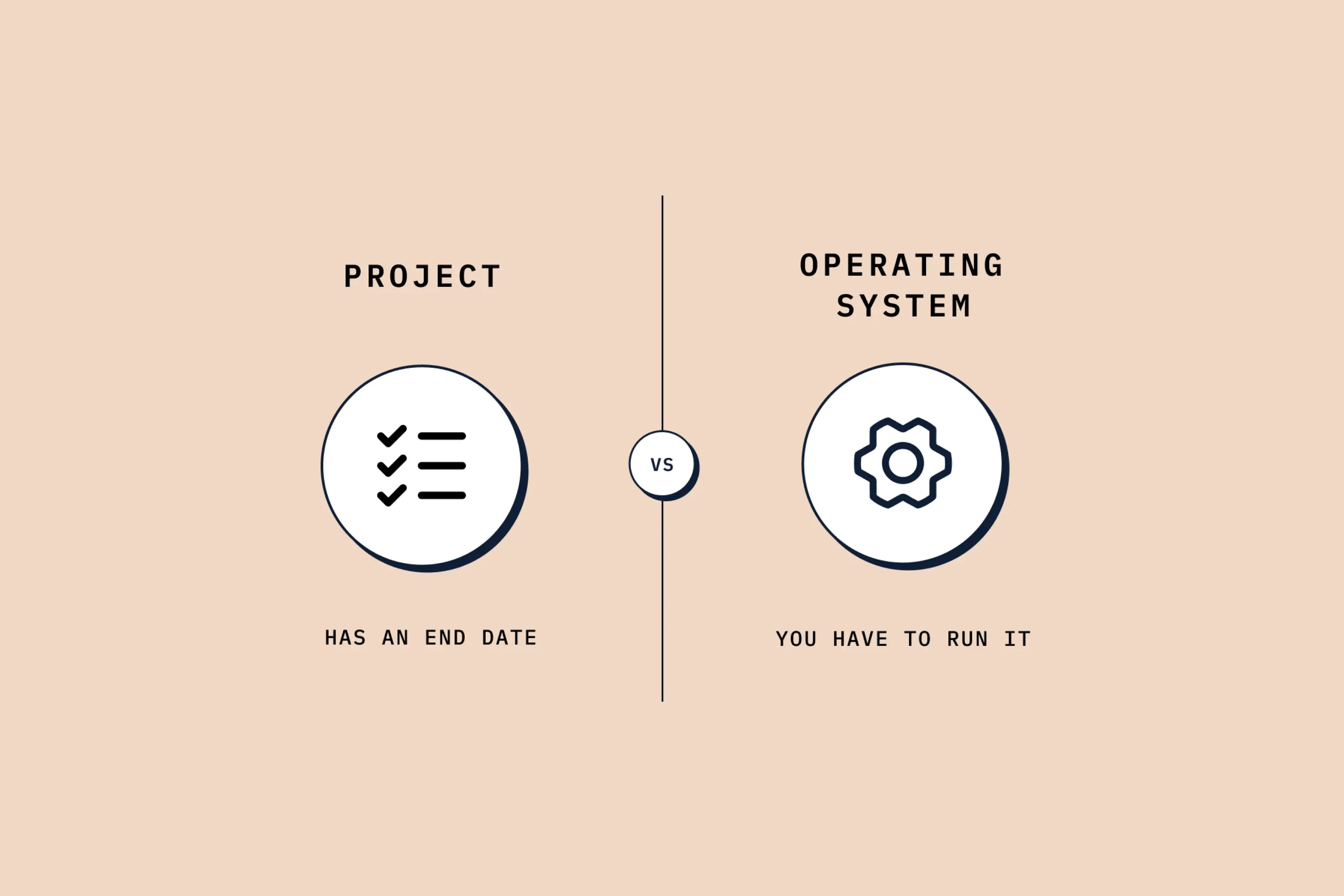
Treat Cowork like an operating system, not a chatbot
The single most useful mental shift is to stop thinking of Cowork as a place you type and start thinking of it as something you configure. It has three layers worth naming: the context it carries before you say anything, the connectors it can reach, and the capabilities it can run. Get those three right and most tasks need no preamble at all.
The principle that governs the whole setup is restraint. You want the right context, not all of it. Dumping every file you own into a folder and hoping Claude sorts it out tends to make results worse, because it fills the working space with information the task does not need. Think of it the way you would brief a sharp new hire on day one: enough to do the job in front of them, not the full company history.
That instinct, by the way, is what separates a system that compounds from one you keep rebuilding. Every piece of context you add should earn its place by improving an output you actually care about.
Install it and pick your engine
Cowork lives inside the Claude desktop app, which you download from claude.com/download for macOS or Windows. You will need a paid plan to use it, but not an expensive one. Anthropic's pricing page lists Cowork as included on the Pro plan at roughly $20 a month, and the two Max tiers at $100 and $200 mainly add usage headroom rather than new features. If you are running Cowork for hours a day, Max earns its keep. If not, Pro is almost certainly enough. Start there and move up only when you feel a limit.
Once you are in, choose your model. The current line-up is Claude Opus 4.8, which Anthropic launched in late May 2026, alongside Sonnet 4.6 and Haiku 4.5. Sonnet is the sensible default for most work and is lighter on usage. Reach for Opus when a task is genuinely ambitious and worth the extra tokens. Turn on extended thinking while you are there.
One small habit that pays for itself immediately: get a voice dictation tool. Talking through a brief is faster than typing it, and the quality of what you give Cowork goes up when you stop editing yourself mid-sentence.
Build the workspace: Folders first
Cowork works inside a folder on your computer. It can read the files there, write new ones back, and, crucially, that folder is where you steer its behaviour. When you start a session, mount a folder deliberately rather than letting it default to wherever you happened to be.
The first thing Claude reads in any folder is a file called CLAUDE.md at the root. This is your standing brief: the purpose of the folder, any conventions, and rules about what not to touch. A line as simple as "only read these context files, never edit them unless I ask" saves you from a tidy-up that quietly rewrites your own instructions.
You do not want Claude reading every file at the start of a session, because that burns through the context window before you have asked anything. The fix is a navigation map, usually a guide.md, that tells Claude what lives where so it can fetch the right file on demand instead of swallowing the lot. Pair this with a clean output structure: an outputs folder where finished work lands, and a projects folder where each active project keeps its own brief and memory. Separating the files you treat as fixed from the files Claude churns through is the difference between a workspace you trust and one you are forever untangling.
Teach it who you are without overloading it
This is where most setups either come alive or collapse under their own weight. The temptation is to write Claude a forty-page company bible. Resist it. A lean starter beats a comprehensive one you never finish, and three small files will carry you a long way.
The first is an about-me.md: who you are, what the business does, your tools, your audience, your current projects. Everything a capable new colleague would want to know on day one, and not much more. The second is a memory.md, a running log Claude appends decisions and context to as you work. This matters because Cowork's automatic memory compresses long conversations down to a couple of sentences, so a file you control is more reliable than one the model fills in on its own. Tell Claude, in your instructions, to update it.
The third file is the one the standard guides miss, and it is the most useful for anyone who writes for a living. Call it writing-rules.md. Have Claude read up on the common tells of AI-generated prose and turn them into a list of things to avoid, then point every writing task at that file. It is a portable, lightweight version of a proper tone-of-voice document, and it is the quickest way to stop Cowork sounding like a press release.
Two layers sit above the folder. Global instructions apply to everything you do in Cowork, so keep them to durable preferences: your role, your language, formatting rules like how you want dates written. Project instructions apply only inside a given project, which is where anything task-specific belongs. The test is simple. If you want Claude to know it everywhere, it goes global. If it only matters for one stream of work, it goes in the project.
Connect your stack, and lock down the permissions
Connectors are what turn Cowork from a clever writer into something that can act. There are four kinds worth knowing. Built-in tools like web search and file creation are always on. Web connectors, the ones you click to add, plug into your stack: Gmail, Slack, Notion, Calendar, and the rest. Claude in Chrome lets it work inside web pages that have no connector. And for tools whose connector lacks the action you need, there is the more advanced route of connecting through an API.
For most tasks, the web connector is the easy path and the right first move. But the part to take seriously is permissions. Every connector action can be set to blocked, needs-approval, or always-allow, and the line to draw is between reading and changing. Reading your calendar causes no harm and can sit on always-allow. Anything that writes, sends, or deletes should require your approval until you genuinely trust it, because "delete all my deals" is a sentence Claude will happily act on if you let it.
Two tactics make connected tools far more efficient. First, build a context map for the big ones. If you run your business out of Notion, give Claude a short map of your workspace so it stops burning tokens hunting for the right database. It is the same idea as the folder navigation map, pointed at live data. Second, when a workflow writes to a specific place, give Claude the explicit ID of the Slack channel or the database rather than its name. Rename the channel later and the workflow still works.
Give it skills and plugins
Out of the box, Cowork can produce properly formatted Word documents, spreadsheets, slide decks, and PDFs through built-in skills. Ask it for a one-page brief as a Word file and it writes one, often pausing to ask a clarifying question or two first. The skill creator will help you build your own, and it is worth turning on for exactly that.
It helps to keep skills and plugins straight in your head. A skill is a saved set of instructions for a specific job: remove the retakes from a video transcript, draft a brief in our format. A plugin is closer to hiring a specialist who arrives with their own tools and knowledge base. Anthropic and third parties offer plugins for legal triage, engineering review, customer support and more, and they run on whatever paid plan you already have rather than costing extra.
The reason skills stay lightweight even when they are long is a mechanism called progressive disclosure. Claude reads a thin description of every skill at all times, but only loads the full instructions when a skill is actually triggered, and only reads the supporting references when it reaches the step that needs them. The practical payoff: a reference file does not have to live inside the skill. If five content skills should all write in the same voice, point them at one shared tone-of-voice document. Change it once and all five update.
Put it on autopilot, then read the safety small print
The feature that makes Cowork feel like it works alongside you is scheduled tasks. You write a prompt once, set a cadence, and Claude runs it on its own. Anthropic's support docs confirm scheduled tasks are available on all paid plans, and the obvious uses are the ones that eat your mornings: a daily inbox triage, a weekly report compiled from your connected tools. The catch is that they run locally, so your computer has to be awake with the app open for a task to fire. That alone is a decent argument for an always-on machine on your desk.
Two newer features extend this. Dispatch, currently a research preview, lets you send Cowork a task from your phone that runs on your desktop, with the finished work waiting when you get back. It needs both the desktop and mobile apps, and the same awake-computer condition applies. Computer use goes further again, letting Claude operate apps directly by clicking and typing, which is how it handles tools that have no API at all.
Here is the part the cheerful tutorials skip, and it is the part worth slowing down for. Computer use runs outside the sandboxed environment Cowork normally uses, so Claude is interacting with your real desktop, not an isolated copy. An unattended task that scans your inbox can be steered by a malicious email, and a document carrying hidden instructions can redirect what Claude does.
This is not a reason to avoid the feature. It is a reason to use it with the brakes on. Cowork activity is not captured in central audit logs, and Anthropic explicitly advises against using it for regulated workloads. Keep destructive actions behind approval, keep automated email-scanning tasks narrow, and treat anything touching money or sensitive files as a manual step.
One privacy setting is worth checking today. Free, Pro and Max accounts default to sharing conversations with Anthropic for model improvement, and you can switch that off in settings, though a conversation flagged by a safety classifier may still be used. Turn it off if you would rather keep your work to yourself, and do not assume the switch is absolute.
Where this leaves you
A good Cowork setup is less about features and more about discipline. The shape of it is consistent: start small, give it the right context rather than all of it, gate anything destructive behind your approval, and only add a connector, skill, or scheduled task when you can point to the work it improves. Treat your context files the way a developer treats code, with one source of truth per fact and a quick test after every change to confirm the output actually got better.
The honest signal that you have done it well is that you spend less time configuring next month than this one. You start with a workspace, three context files, and one or two connectors. You add a skill when a task repeats often enough to be worth saving. Eventually a scheduled task is reading your inbox and drafting the replies before your coffee has cooled, and the setup that took a morning is quietly returning that morning to you every week.
If you want more breakdowns like this one, practical AI workflows for people who make content rather than demos, join us in our free community for AI operators. And if you're looking to set up Claude Code now you have Cowork up and running, read our full overview here.
FREE LIVE SESSIONS
What’s the best way to learn AI?
With 9x Live! Join a free session and learn the skills that’ll get you ahead of the 99%.
What to do next
1
Start learning free
Take our AI starter course and apply the latest technologies to your first use case. Completely free. Get started today.
2
Learn it live
Join a free weekly 9x Live session, watch work get automated in real time, and get your questions answered by leading educators. Sign up for the next session.
3
Watch our videos on YouTube
With one of the fastest growing channels in the industry, hundreds of thousands of people watch our tutorials every week. Subscribe here so you never miss a video.

Claude
The first time you open Claude Cowork, you stare at a blank window, type one request, and quietly close it again. The tool is fine. The setup is the thing. Done well, you get an assistant that reads your inbox, drafts in your voice, and pulls a weekly report together before you sit down. Done badly, you get a faster chatbot you have to re-explain yourself to every single morning.
This is a build guide for the second outcome turning into the first. It assumes you will actually maintain what you build, so it favours a small, deliberate setup over a sprawling one. You can do the whole thing in a morning. By the end, you will know how to set up Claude Cowork as a system rather than a novelty, and you will know which parts to be careful with.
A note on what this is not. The breezy version of this advice tells you to connect everything, install every plugin, and let it rip. We will do the opposite. The discipline is the point.
Treat Cowork like an operating system, not a chatbot
The single most useful mental shift is to stop thinking of Cowork as a place you type and start thinking of it as something you configure. It has three layers worth naming: the context it carries before you say anything, the connectors it can reach, and the capabilities it can run. Get those three right and most tasks need no preamble at all.
The principle that governs the whole setup is restraint. You want the right context, not all of it. Dumping every file you own into a folder and hoping Claude sorts it out tends to make results worse, because it fills the working space with information the task does not need. Think of it the way you would brief a sharp new hire on day one: enough to do the job in front of them, not the full company history.
That instinct, by the way, is what separates a system that compounds from one you keep rebuilding. Every piece of context you add should earn its place by improving an output you actually care about.
Install it and pick your engine
Cowork lives inside the Claude desktop app, which you download from claude.com/download for macOS or Windows. You will need a paid plan to use it, but not an expensive one. Anthropic's pricing page lists Cowork as included on the Pro plan at roughly $20 a month, and the two Max tiers at $100 and $200 mainly add usage headroom rather than new features. If you are running Cowork for hours a day, Max earns its keep. If not, Pro is almost certainly enough. Start there and move up only when you feel a limit.
Once you are in, choose your model. The current line-up is Claude Opus 4.8, which Anthropic launched in late May 2026, alongside Sonnet 4.6 and Haiku 4.5. Sonnet is the sensible default for most work and is lighter on usage. Reach for Opus when a task is genuinely ambitious and worth the extra tokens. Turn on extended thinking while you are there.
One small habit that pays for itself immediately: get a voice dictation tool. Talking through a brief is faster than typing it, and the quality of what you give Cowork goes up when you stop editing yourself mid-sentence.
Build the workspace: Folders first
Cowork works inside a folder on your computer. It can read the files there, write new ones back, and, crucially, that folder is where you steer its behaviour. When you start a session, mount a folder deliberately rather than letting it default to wherever you happened to be.
The first thing Claude reads in any folder is a file called CLAUDE.md at the root. This is your standing brief: the purpose of the folder, any conventions, and rules about what not to touch. A line as simple as "only read these context files, never edit them unless I ask" saves you from a tidy-up that quietly rewrites your own instructions.
You do not want Claude reading every file at the start of a session, because that burns through the context window before you have asked anything. The fix is a navigation map, usually a guide.md, that tells Claude what lives where so it can fetch the right file on demand instead of swallowing the lot. Pair this with a clean output structure: an outputs folder where finished work lands, and a projects folder where each active project keeps its own brief and memory. Separating the files you treat as fixed from the files Claude churns through is the difference between a workspace you trust and one you are forever untangling.
Teach it who you are without overloading it
This is where most setups either come alive or collapse under their own weight. The temptation is to write Claude a forty-page company bible. Resist it. A lean starter beats a comprehensive one you never finish, and three small files will carry you a long way.
The first is an about-me.md: who you are, what the business does, your tools, your audience, your current projects. Everything a capable new colleague would want to know on day one, and not much more. The second is a memory.md, a running log Claude appends decisions and context to as you work. This matters because Cowork's automatic memory compresses long conversations down to a couple of sentences, so a file you control is more reliable than one the model fills in on its own. Tell Claude, in your instructions, to update it.
The third file is the one the standard guides miss, and it is the most useful for anyone who writes for a living. Call it writing-rules.md. Have Claude read up on the common tells of AI-generated prose and turn them into a list of things to avoid, then point every writing task at that file. It is a portable, lightweight version of a proper tone-of-voice document, and it is the quickest way to stop Cowork sounding like a press release.
Two layers sit above the folder. Global instructions apply to everything you do in Cowork, so keep them to durable preferences: your role, your language, formatting rules like how you want dates written. Project instructions apply only inside a given project, which is where anything task-specific belongs. The test is simple. If you want Claude to know it everywhere, it goes global. If it only matters for one stream of work, it goes in the project.
Connect your stack, and lock down the permissions
Connectors are what turn Cowork from a clever writer into something that can act. There are four kinds worth knowing. Built-in tools like web search and file creation are always on. Web connectors, the ones you click to add, plug into your stack: Gmail, Slack, Notion, Calendar, and the rest. Claude in Chrome lets it work inside web pages that have no connector. And for tools whose connector lacks the action you need, there is the more advanced route of connecting through an API.
For most tasks, the web connector is the easy path and the right first move. But the part to take seriously is permissions. Every connector action can be set to blocked, needs-approval, or always-allow, and the line to draw is between reading and changing. Reading your calendar causes no harm and can sit on always-allow. Anything that writes, sends, or deletes should require your approval until you genuinely trust it, because "delete all my deals" is a sentence Claude will happily act on if you let it.
Two tactics make connected tools far more efficient. First, build a context map for the big ones. If you run your business out of Notion, give Claude a short map of your workspace so it stops burning tokens hunting for the right database. It is the same idea as the folder navigation map, pointed at live data. Second, when a workflow writes to a specific place, give Claude the explicit ID of the Slack channel or the database rather than its name. Rename the channel later and the workflow still works.
Give it skills and plugins
Out of the box, Cowork can produce properly formatted Word documents, spreadsheets, slide decks, and PDFs through built-in skills. Ask it for a one-page brief as a Word file and it writes one, often pausing to ask a clarifying question or two first. The skill creator will help you build your own, and it is worth turning on for exactly that.
It helps to keep skills and plugins straight in your head. A skill is a saved set of instructions for a specific job: remove the retakes from a video transcript, draft a brief in our format. A plugin is closer to hiring a specialist who arrives with their own tools and knowledge base. Anthropic and third parties offer plugins for legal triage, engineering review, customer support and more, and they run on whatever paid plan you already have rather than costing extra.
The reason skills stay lightweight even when they are long is a mechanism called progressive disclosure. Claude reads a thin description of every skill at all times, but only loads the full instructions when a skill is actually triggered, and only reads the supporting references when it reaches the step that needs them. The practical payoff: a reference file does not have to live inside the skill. If five content skills should all write in the same voice, point them at one shared tone-of-voice document. Change it once and all five update.
Put it on autopilot, then read the safety small print
The feature that makes Cowork feel like it works alongside you is scheduled tasks. You write a prompt once, set a cadence, and Claude runs it on its own. Anthropic's support docs confirm scheduled tasks are available on all paid plans, and the obvious uses are the ones that eat your mornings: a daily inbox triage, a weekly report compiled from your connected tools. The catch is that they run locally, so your computer has to be awake with the app open for a task to fire. That alone is a decent argument for an always-on machine on your desk.
Two newer features extend this. Dispatch, currently a research preview, lets you send Cowork a task from your phone that runs on your desktop, with the finished work waiting when you get back. It needs both the desktop and mobile apps, and the same awake-computer condition applies. Computer use goes further again, letting Claude operate apps directly by clicking and typing, which is how it handles tools that have no API at all.
Here is the part the cheerful tutorials skip, and it is the part worth slowing down for. Computer use runs outside the sandboxed environment Cowork normally uses, so Claude is interacting with your real desktop, not an isolated copy. An unattended task that scans your inbox can be steered by a malicious email, and a document carrying hidden instructions can redirect what Claude does.
This is not a reason to avoid the feature. It is a reason to use it with the brakes on. Cowork activity is not captured in central audit logs, and Anthropic explicitly advises against using it for regulated workloads. Keep destructive actions behind approval, keep automated email-scanning tasks narrow, and treat anything touching money or sensitive files as a manual step.
One privacy setting is worth checking today. Free, Pro and Max accounts default to sharing conversations with Anthropic for model improvement, and you can switch that off in settings, though a conversation flagged by a safety classifier may still be used. Turn it off if you would rather keep your work to yourself, and do not assume the switch is absolute.
Where this leaves you
A good Cowork setup is less about features and more about discipline. The shape of it is consistent: start small, give it the right context rather than all of it, gate anything destructive behind your approval, and only add a connector, skill, or scheduled task when you can point to the work it improves. Treat your context files the way a developer treats code, with one source of truth per fact and a quick test after every change to confirm the output actually got better.
The honest signal that you have done it well is that you spend less time configuring next month than this one. You start with a workspace, three context files, and one or two connectors. You add a skill when a task repeats often enough to be worth saving. Eventually a scheduled task is reading your inbox and drafting the replies before your coffee has cooled, and the setup that took a morning is quietly returning that morning to you every week.
If you want more breakdowns like this one, practical AI workflows for people who make content rather than demos, join us in our free community for AI operators. And if you're looking to set up Claude Code now you have Cowork up and running, read our full overview here.
FREE LIVE SESSIONS
What’s the best way to learn AI?
With 9x Live! Join a free session and learn the skills that’ll get you ahead of the 99%.
What to do next
1
Start learning free
Take our AI starter course and apply the latest technologies to your first use case. Completely free. Get started today.
2
Learn it live
Join a free weekly 9x Live session, watch work get automated in real time, and get your questions answered by leading educators. Sign up for the next session.
3
Watch our videos on YouTube
With one of the fastest growing channels in the industry, hundreds of thousands of people watch our tutorials every week. Subscribe here so you never miss a video.
Claude
read next
Running AI Enablement Internally? Here are Three Things to Consider
AI enablement looks like a training project. It isn't. Skill levels, tools and functions all move at once. Here's what running it internally really takes.

What is Claude Slides, and How to Use Them (Guide for Beginners)
How to use Claude Slides to build an on-brand deck from a one-line brief, edit and export it, and where it beats PowerPoint and Google Slides, and where it doesn't.
read next
Running AI Enablement Internally? Here are Three Things to Consider
AI enablement looks like a training project. It isn't. Skill levels, tools and functions all move at once. Here's what running it internally really takes.
What is Claude Slides, and How to Use Them (Guide for Beginners)
How to use Claude Slides to build an on-brand deck from a one-line brief, edit and export it, and where it beats PowerPoint and Google Slides, and where it doesn't.
Your new home for learning AI.
Weekly live workshops, on-demand courses, and plug-and-play downloadables. Get started for free today.
Your new home for learning AI.
Weekly live workshops, on-demand courses, and plug-and-play downloadables. Get started for free today.
Your new home for learning AI.
Weekly live workshops, on-demand courses, and plug-and-play downloadables. Get started for free today.