ChatGPT Connectors Explained: What They Are and How to Use Them

By
Jan Meinecke
・
・
11
Min
ChatGPT Connectors Explained: What They Are and How to Use Them
By
jan Meinecke
11
Min
ChatGPT connectors are how ChatGPT reads from and writes to the tools you already use: Gmail, Slack, Notion, HubSpot, GitHub, your CRM. Connect one and ChatGPT can search it, pull from it, and in many cases act inside it.
One thing to clear up before anything else, because it's why half the guides you'll find are already wrong. OpenAI renamed this. Connectors are now apps, and apps are distributed inside plugins. If you go looking for a connector menu you won't find one.
Here's what actually connects inside ChatGPT Work, what to check before you trust it, and what to do when your tool isn't on the list.
Connectors, apps, plugins and skills
OpenAI moved the app directory into the plugin directory on 9 July 2026. Existing connections carried over untouched, but the vocabulary changed, and the new vocabulary is worth learning because it explains behaviour that otherwise looks random.
A plugin is an installable package. It can contain two different things:
Apps connect ChatGPT to a tool. This is the connector, the thing that holds your login and reaches your data.
Skills teach ChatGPT a workflow. No login, no data, just instructions.
An app tells it where to work. A skill teaches it how. Most plugins are hybrids containing both.
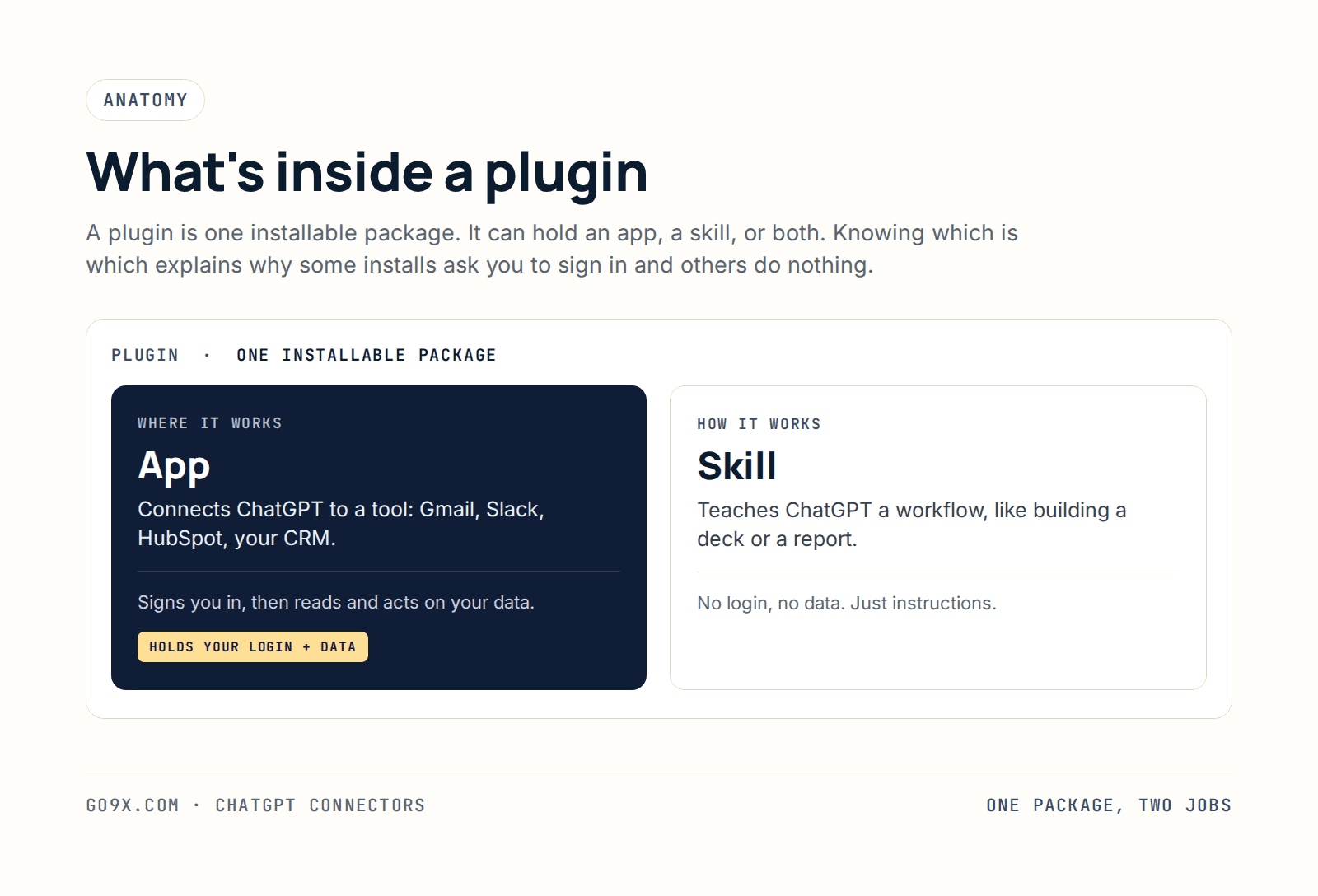
That distinction explains the two things people find confusing. Install Gmail and it immediately asks you to sign in, because the plugin contains an app. Install Presentations and nothing happens, because Presentations connects to nothing: it's one skill that knows how to build a deck. And installing Data Analytics also appears to do nothing, when in fact it suggests more than 23 apps to connect underneath. Clicking install isn't the last step. Open the plugin and connect the tools you actually use.
Claude organises the same idea differently, splitting connectors from skills rather than nesting both inside a package. Same two jobs, different packaging.
What ChatGPT connectors plug into, by job
Browsing the directory alphabetically is a waste of an afternoon. Connect against a job instead.
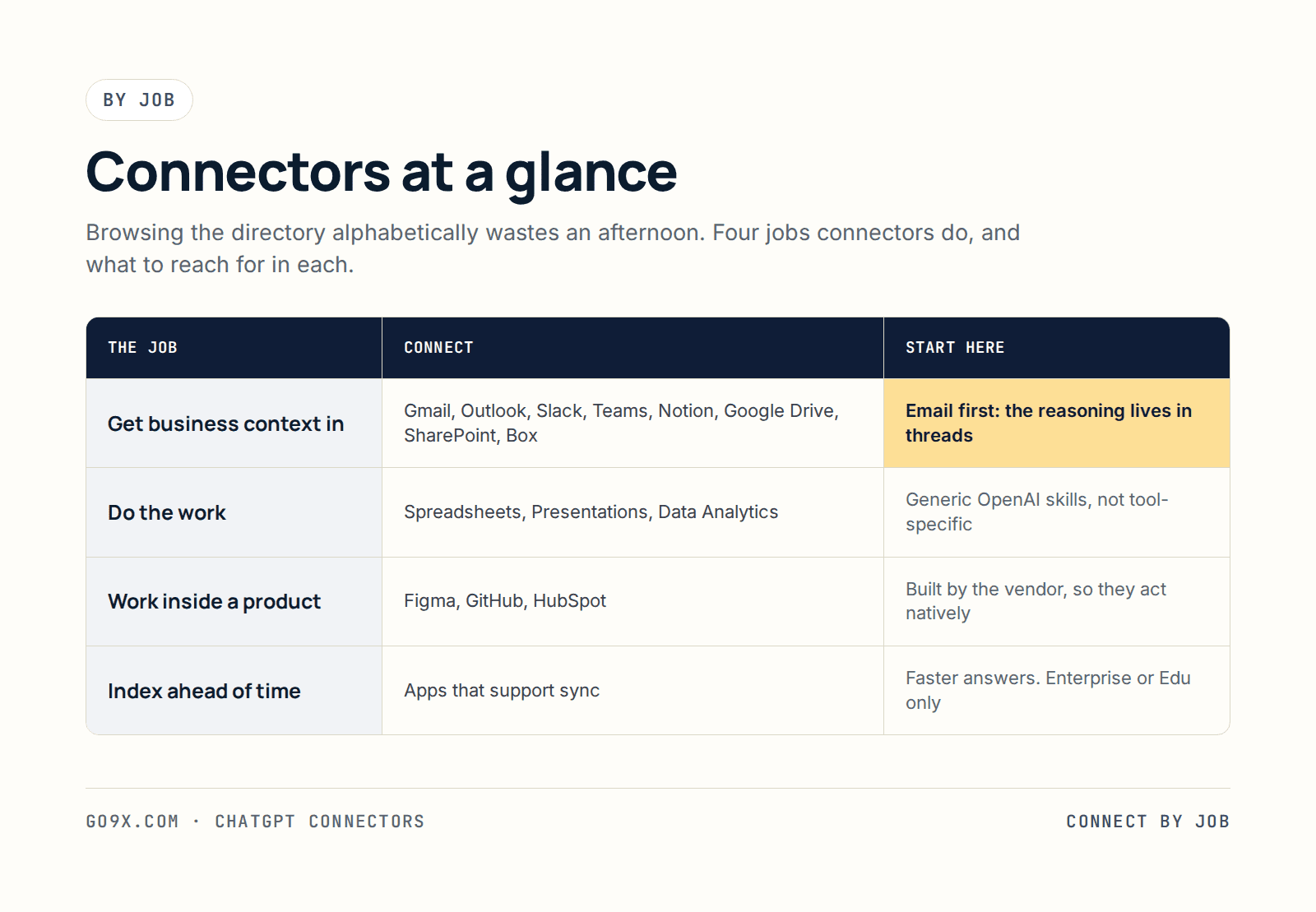
Getting business context in. Gmail, Outlook, Slack, Teams, Notion, Google Drive, SharePoint, Dropbox and Box. Email is the one worth doing first, because so much of the reasoning behind a decision lives in a thread and nowhere else. Once Gmail is connected, "what came in today that needs a reply" stops being a manual sweep.
Doing the work. Spreadsheets, Presentations and Data Analytics come from OpenAI and are generic rather than tool-specific. Spreadsheets isn't a Google Sheets connector: it teaches ChatGPT how to handle CSV and Excel files properly, wherever they came from.
Working inside a product. Figma, GitHub, HubSpot and similar are built by the companies themselves, and that shows. Figma wrote the Figma plugin, so it arrives already knowing how to create a file or start a design rather than needing to be taught.
Indexing knowledge ahead of time. A few apps support sync, which indexes your content in advance so answers come back faster and better. Worth knowing that sync is limited to Enterprise and Edu workspaces with Enterprise Key Management enabled, so most readers will be on live search instead. Existing file permissions are respected either way, which means two colleagues can ask the same question and correctly get different answers.
To direct it rather than leaving it to guess, type @ for an app and / for a skill.
App permissions and approval settings
This is the step nearly everyone skips, and it's the one I wouldn't skip.
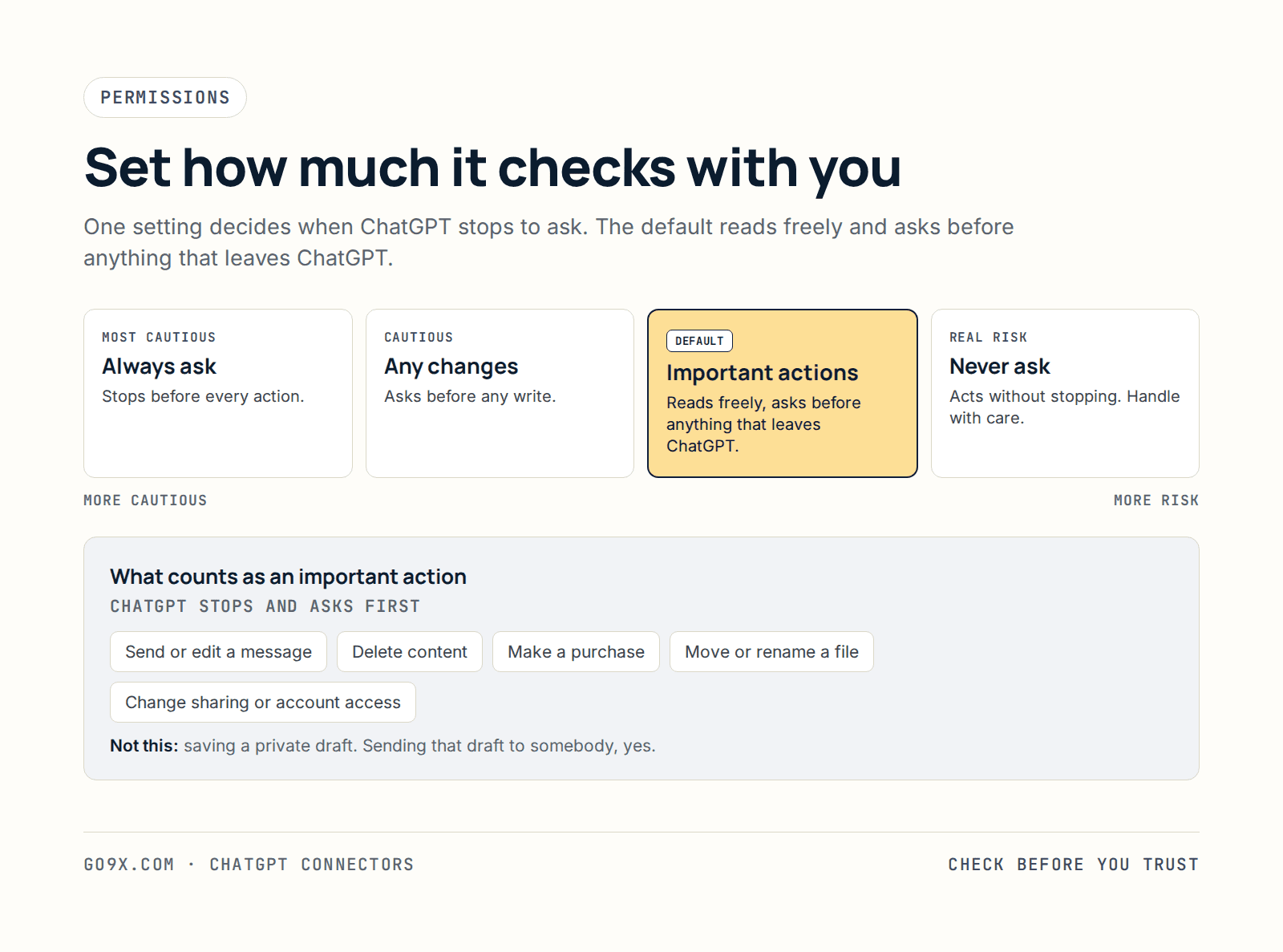
Connecting an app grants it access. A separate setting controls when ChatGPT stops to ask you first. The default is Important actions: it reads freely, and asks before anything with an effect outside ChatGPT. The other settings are Always ask, Any changes, and Never ask, which does what it says and carries real risk.
OpenAI's definition of an important action is more useful than a warning: sending or editing a message on your behalf, deleting content, making a purchase, moving or renaming a file, or changing sharing permissions and account access. Saving a private draft isn't one. Sending that draft to somebody is.
Two habits from running this across a team. Open the app and read its actions list before you connect it, because the write actions are where the surprises live. And if you're an admin, note that apps are on by default for Business plans and off by default for Enterprise and Edu, so your rollout starts from a different place depending on which you bought.
Turning off skills you won't use
A small piece of housekeeping that saves an ongoing irritation.
Open a plugin and you'll find a list of skills underneath the apps, each one individually toggleable. I don't work with Jupyter notebooks, so that skill is off. Left on, there's every chance I use the word "notebook" in a sentence and ChatGPT decides the Jupyter skill is relevant.
Skills are efficient with tokens by design, so this isn't about cost. It's about a stray keyword pulling in a workflow you never wanted. Install the plugin, test a few of the skills, turn off the rest.
When your tool has no connector
This is where our answer differs from most, and it's a ladder rather than a single move. MCP first, connector second, browser last.
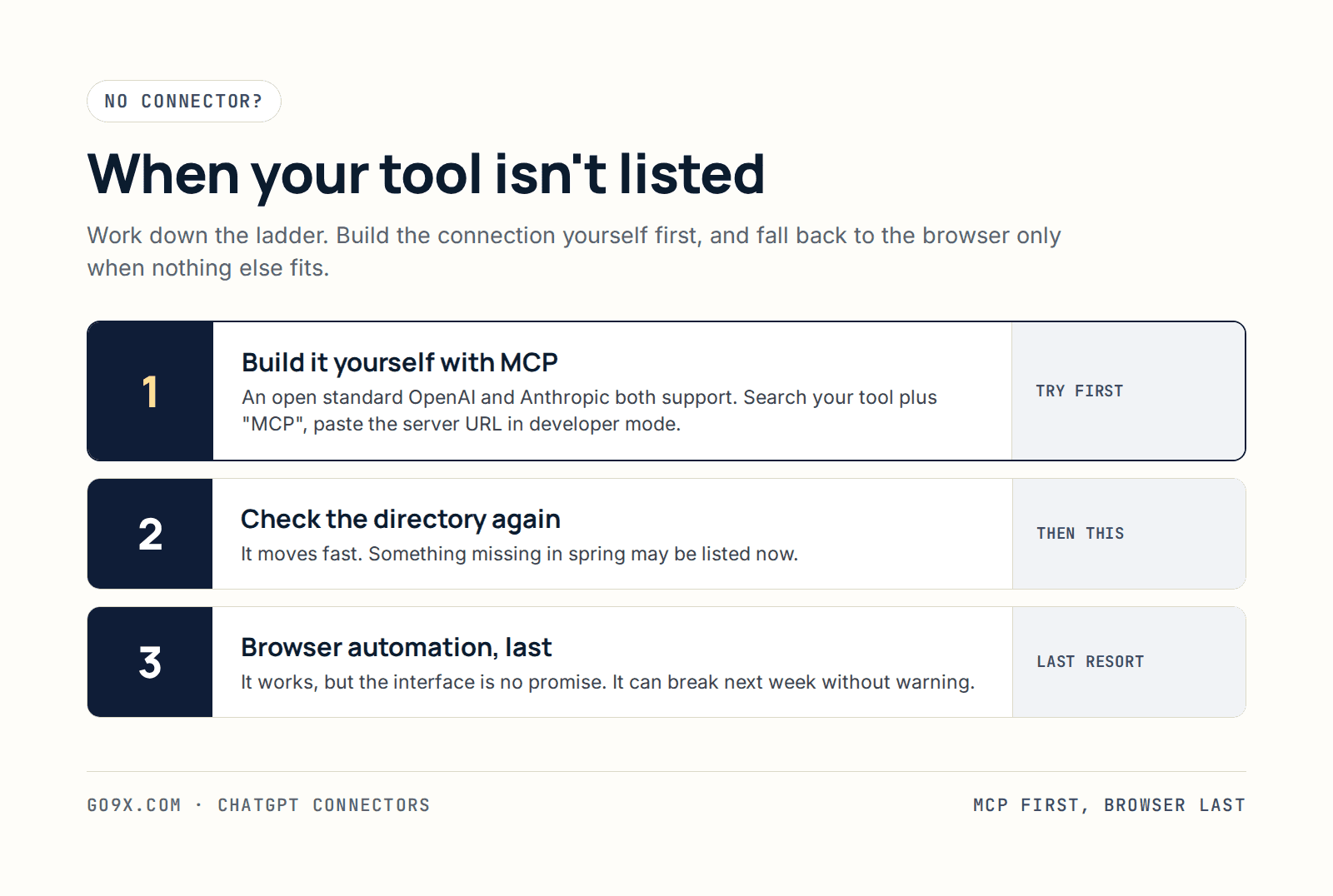
1. Build the connection yourself with MCP. Model Context Protocol is an open standard that OpenAI and Anthropic both support, and a great many tools now publish a server for it. If the acronym is new, here's what MCP actually does. Search your tool's name plus "MCP" and look for the server URL in its documentation.
Adding it needs developer mode, which is on the web version rather than the desktop app. OpenAI's current instructions put the toggle under Settings, then Security and login, and it's available on Pro, Plus, Business, Enterprise and Education accounts. It has moved around more than once, so check the doc rather than a screenshot. Once it's on, a plus button appears in the plugin settings: paste the server URL, set authentication, sign in and grant permissions.
Getting it into the desktop app is the step that catches people. Click the three dots and hit publish. It's well hidden and took me a while to find. After that, typing @ in Work mode brings your tool up like any other.
We did this for Customer.io, our email marketing platform, which has no plugin. Asking what it could do returned the full list: building and editing templates, managing broadcasts, running A/B tests, creating segments and automations. All work we used to do by hand.
2. Check the directory properly first. Obvious, but the plugin directory moves quickly and something that was missing in spring may be there now.
3. Browser automation, as a last resort. OpenAI's agent has a browser built in and can log in on your behalf, with a password manager in its settings for a dedicated account. Driving a browser is one of the things the chat window can't do at all, so it's a real capability rather than a workaround. It handled downloading twenty images off our blog without complaint and struggled badly pulling invoices from a logged-in Amazon account, so test it on your specific job before you build anything on top of it.
Browser comes last for a reason, and it isn't difficulty. A tool's public API is maintained and versioned, and the company tells you before it changes. Anything you automate through the interface isn't a promise anyone has made you. It can change next week without notice, and nothing will tell you except a workflow that quietly stops working.
Common questions
What are ChatGPT connectors? Integrations that let ChatGPT read from and act inside tools like Gmail, Slack and Notion. Since July 2026 they're called apps, and they're distributed inside plugins.
Are connectors and plugins the same thing? No. A plugin is the package. It can contain apps, skills, or both.
Do I need a paid plan? The plugin directory is visible on all plans, but which plugins you can install and use depends on your plan, your role and your workspace settings. Sync needs Enterprise or Edu.
Can ChatGPT connect to a tool with no plugin? Yes, through MCP in developer mode on the web version, then published across to the desktop app. If there's no MCP server either, the built-in browser is the fallback.
Will it send emails without asking me? Not on the default setting. Sending on your behalf counts as an important action, so it asks first.
Can I stop a connected app being used on one question? Yes. Say so in the prompt, or leave it unmentioned and pick a different tool with @.
Connecting the tools is the quick part. Deciding which jobs are worth handing over, and briefing them so the output is usable, is the part that takes practice. That's what our Cowork training programme works through, function by function.
FREE LIVE SESSIONS
What’s the best way to learn AI?
With 9x Live! Join a free session and learn the skills that’ll get you ahead of the 99%.
What to do next
1
Start learning free
Take our AI starter course and apply the latest technologies to your first use case. Completely free. Get started today.
2
Learn it live
Join a free weekly 9x Live session, watch work get automated in real time, and get your questions answered by leading educators. Sign up for the next session.
3
Watch our videos on YouTube
With one of the fastest growing channels in the industry, hundreds of thousands of people watch our tutorials every week. Subscribe here so you never miss a video.

ChatGPT
ChatGPT connectors are how ChatGPT reads from and writes to the tools you already use: Gmail, Slack, Notion, HubSpot, GitHub, your CRM. Connect one and ChatGPT can search it, pull from it, and in many cases act inside it.
One thing to clear up before anything else, because it's why half the guides you'll find are already wrong. OpenAI renamed this. Connectors are now apps, and apps are distributed inside plugins. If you go looking for a connector menu you won't find one.
Here's what actually connects inside ChatGPT Work, what to check before you trust it, and what to do when your tool isn't on the list.
Connectors, apps, plugins and skills
OpenAI moved the app directory into the plugin directory on 9 July 2026. Existing connections carried over untouched, but the vocabulary changed, and the new vocabulary is worth learning because it explains behaviour that otherwise looks random.
A plugin is an installable package. It can contain two different things:
Apps connect ChatGPT to a tool. This is the connector, the thing that holds your login and reaches your data.
Skills teach ChatGPT a workflow. No login, no data, just instructions.
An app tells it where to work. A skill teaches it how. Most plugins are hybrids containing both.
That distinction explains the two things people find confusing. Install Gmail and it immediately asks you to sign in, because the plugin contains an app. Install Presentations and nothing happens, because Presentations connects to nothing: it's one skill that knows how to build a deck. And installing Data Analytics also appears to do nothing, when in fact it suggests more than 23 apps to connect underneath. Clicking install isn't the last step. Open the plugin and connect the tools you actually use.
Claude organises the same idea differently, splitting connectors from skills rather than nesting both inside a package. Same two jobs, different packaging.
What ChatGPT connectors plug into, by job
Browsing the directory alphabetically is a waste of an afternoon. Connect against a job instead.
Getting business context in. Gmail, Outlook, Slack, Teams, Notion, Google Drive, SharePoint, Dropbox and Box. Email is the one worth doing first, because so much of the reasoning behind a decision lives in a thread and nowhere else. Once Gmail is connected, "what came in today that needs a reply" stops being a manual sweep.
Doing the work. Spreadsheets, Presentations and Data Analytics come from OpenAI and are generic rather than tool-specific. Spreadsheets isn't a Google Sheets connector: it teaches ChatGPT how to handle CSV and Excel files properly, wherever they came from.
Working inside a product. Figma, GitHub, HubSpot and similar are built by the companies themselves, and that shows. Figma wrote the Figma plugin, so it arrives already knowing how to create a file or start a design rather than needing to be taught.
Indexing knowledge ahead of time. A few apps support sync, which indexes your content in advance so answers come back faster and better. Worth knowing that sync is limited to Enterprise and Edu workspaces with Enterprise Key Management enabled, so most readers will be on live search instead. Existing file permissions are respected either way, which means two colleagues can ask the same question and correctly get different answers.
To direct it rather than leaving it to guess, type @ for an app and / for a skill.
App permissions and approval settings
This is the step nearly everyone skips, and it's the one I wouldn't skip.
Connecting an app grants it access. A separate setting controls when ChatGPT stops to ask you first. The default is Important actions: it reads freely, and asks before anything with an effect outside ChatGPT. The other settings are Always ask, Any changes, and Never ask, which does what it says and carries real risk.
OpenAI's definition of an important action is more useful than a warning: sending or editing a message on your behalf, deleting content, making a purchase, moving or renaming a file, or changing sharing permissions and account access. Saving a private draft isn't one. Sending that draft to somebody is.
Two habits from running this across a team. Open the app and read its actions list before you connect it, because the write actions are where the surprises live. And if you're an admin, note that apps are on by default for Business plans and off by default for Enterprise and Edu, so your rollout starts from a different place depending on which you bought.
Turning off skills you won't use
A small piece of housekeeping that saves an ongoing irritation.
Open a plugin and you'll find a list of skills underneath the apps, each one individually toggleable. I don't work with Jupyter notebooks, so that skill is off. Left on, there's every chance I use the word "notebook" in a sentence and ChatGPT decides the Jupyter skill is relevant.
Skills are efficient with tokens by design, so this isn't about cost. It's about a stray keyword pulling in a workflow you never wanted. Install the plugin, test a few of the skills, turn off the rest.
When your tool has no connector
This is where our answer differs from most, and it's a ladder rather than a single move. MCP first, connector second, browser last.
1. Build the connection yourself with MCP. Model Context Protocol is an open standard that OpenAI and Anthropic both support, and a great many tools now publish a server for it. If the acronym is new, here's what MCP actually does. Search your tool's name plus "MCP" and look for the server URL in its documentation.
Adding it needs developer mode, which is on the web version rather than the desktop app. OpenAI's current instructions put the toggle under Settings, then Security and login, and it's available on Pro, Plus, Business, Enterprise and Education accounts. It has moved around more than once, so check the doc rather than a screenshot. Once it's on, a plus button appears in the plugin settings: paste the server URL, set authentication, sign in and grant permissions.
Getting it into the desktop app is the step that catches people. Click the three dots and hit publish. It's well hidden and took me a while to find. After that, typing @ in Work mode brings your tool up like any other.
We did this for Customer.io, our email marketing platform, which has no plugin. Asking what it could do returned the full list: building and editing templates, managing broadcasts, running A/B tests, creating segments and automations. All work we used to do by hand.
2. Check the directory properly first. Obvious, but the plugin directory moves quickly and something that was missing in spring may be there now.
3. Browser automation, as a last resort. OpenAI's agent has a browser built in and can log in on your behalf, with a password manager in its settings for a dedicated account. Driving a browser is one of the things the chat window can't do at all, so it's a real capability rather than a workaround. It handled downloading twenty images off our blog without complaint and struggled badly pulling invoices from a logged-in Amazon account, so test it on your specific job before you build anything on top of it.
Browser comes last for a reason, and it isn't difficulty. A tool's public API is maintained and versioned, and the company tells you before it changes. Anything you automate through the interface isn't a promise anyone has made you. It can change next week without notice, and nothing will tell you except a workflow that quietly stops working.
Common questions
What are ChatGPT connectors? Integrations that let ChatGPT read from and act inside tools like Gmail, Slack and Notion. Since July 2026 they're called apps, and they're distributed inside plugins.
Are connectors and plugins the same thing? No. A plugin is the package. It can contain apps, skills, or both.
Do I need a paid plan? The plugin directory is visible on all plans, but which plugins you can install and use depends on your plan, your role and your workspace settings. Sync needs Enterprise or Edu.
Can ChatGPT connect to a tool with no plugin? Yes, through MCP in developer mode on the web version, then published across to the desktop app. If there's no MCP server either, the built-in browser is the fallback.
Will it send emails without asking me? Not on the default setting. Sending on your behalf counts as an important action, so it asks first.
Can I stop a connected app being used on one question? Yes. Say so in the prompt, or leave it unmentioned and pick a different tool with @.
Connecting the tools is the quick part. Deciding which jobs are worth handing over, and briefing them so the output is usable, is the part that takes practice. That's what our Cowork training programme works through, function by function.
FREE LIVE SESSIONS
What’s the best way to learn AI?
With 9x Live! Join a free session and learn the skills that’ll get you ahead of the 99%.
What to do next
1
Start learning free
Take our AI starter course and apply the latest technologies to your first use case. Completely free. Get started today.
2
Learn it live
Join a free weekly 9x Live session, watch work get automated in real time, and get your questions answered by leading educators. Sign up for the next session.
3
Watch our videos on YouTube
With one of the fastest growing channels in the industry, hundreds of thousands of people watch our tutorials every week. Subscribe here so you never miss a video.
ChatGPT
read next

8 ChatGPT Browser Use Cases That Save Me Hours Every Week
8 ChatGPT browser use cases I run every week, from turning a website into a spreadsheet to auditing a competitor's funnel, with the setup and prompts for each.

The 8 AI Skills That Will Separate Winners From Losers in 2027
The AI skills to learn in 2027 if you work for a company: five for delegating work to an agent, three for building AI for your team, and the tools for each.
read next
8 ChatGPT Browser Use Cases That Save Me Hours Every Week
8 ChatGPT browser use cases I run every week, from turning a website into a spreadsheet to auditing a competitor's funnel, with the setup and prompts for each.
The 8 AI Skills That Will Separate Winners From Losers in 2027
The AI skills to learn in 2027 if you work for a company: five for delegating work to an agent, three for building AI for your team, and the tools for each.
Your new home for learning AI.
Weekly live workshops, on-demand courses, and plug-and-play downloadables. Get started for free today.
Your new home for learning AI.
Weekly live workshops, on-demand courses, and plug-and-play downloadables. Get started for free today.
Your new home for learning AI.
Weekly live workshops, on-demand courses, and plug-and-play downloadables. Get started for free today.